Skip to content
Slide Spotlight
Download

Presentation remote

The pointer is already in your pocket.

Over Wi-Fi or Bluetooth LE, the phone puts a circle of light, a magnifier, or a dot on the computer screen. Tilt to aim. Previous and next change the slide.

Remote: Android 8+. Receiver: Mac Apple Silicon (macOS 13+, Wi-Fi and Bluetooth), Windows 10+ (preview), Linux (X11 or XWayland, preview), Android tablet (Wi-Fi and Bluetooth). iPhone is not supported.

The remote is the Android app. The receiver goes where the slides run: Mac, Windows, Linux, or another Android.

  • Spotlight is free: the screen dims and a circle stays lit
  • Connects over Wi-Fi or Bluetooth LE, and remembers your phone after the first code
  • Keynote, PowerPoint, Google Slides, and apps that use the arrow keys
  • No account. The link stays directly between the two devices

Try it on the slide

Drag, or use the arrow keys.

Third quarter

Revenue by region

+18%

The circle keeps every eye on the number that matters.

North

Center

South

Islands

Slide Spotlight remote: pad, spotlight, and previous and next buttons.

Three steps

From the QR code to a circle of light, in a minute.

Over Wi-Fi or Bluetooth LE, with no system pairing and no clicker to charge. After the first code, reconnect with a single tap.

  1. 01

    Open the receiver

    On a Mac it is a menu-bar app. On Windows, open it from the Start menu. On an Android tablet, open Slide Spotlight Receiver. Choose Wi-Fi, Bluetooth, or both. Leave the deck fullscreen, in front.

  2. 02

    Connect the phone

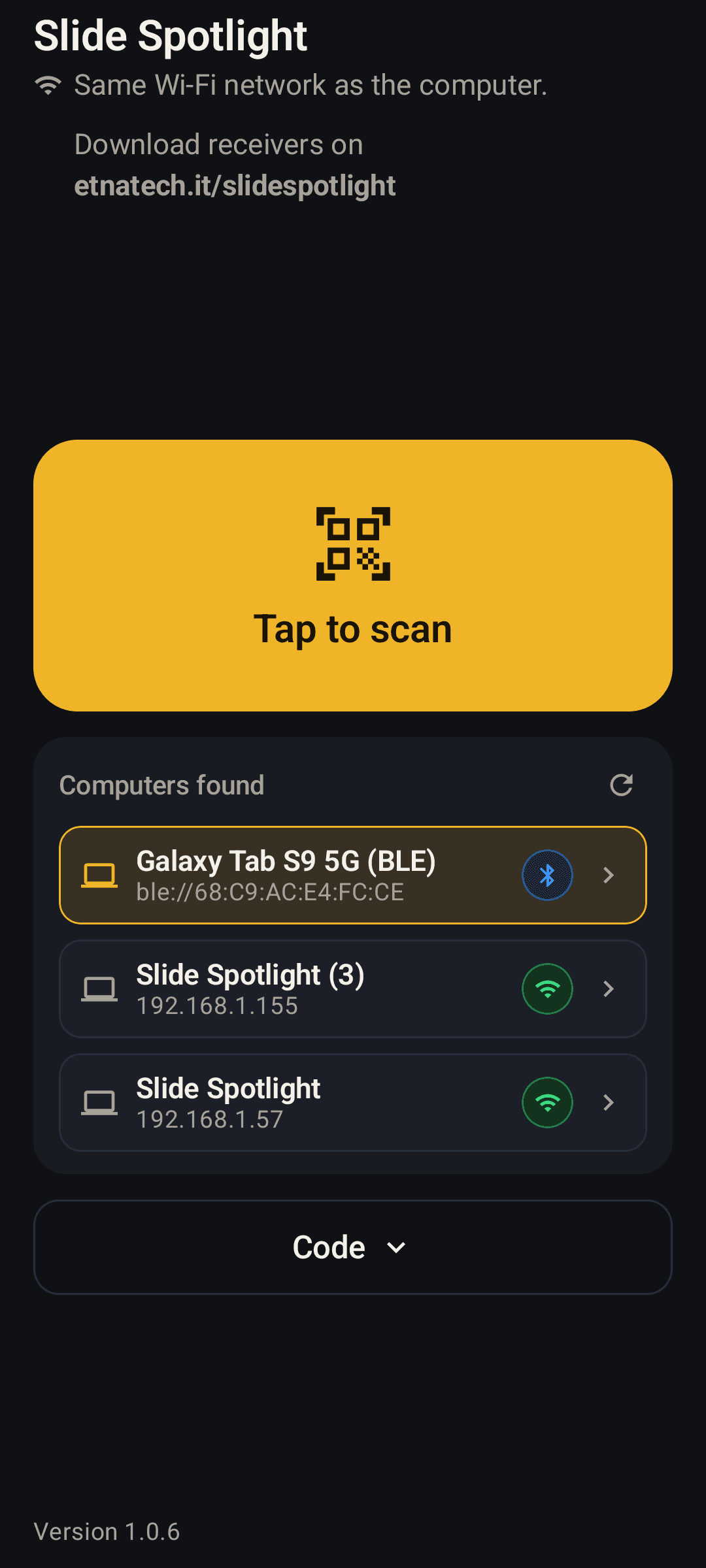
    Frame the QR code, or tap the discovered device in the list (marked with a Bluetooth or Wi-Fi icon). You only enter the 4-digit code the first time: it connects automatically on the 4th digit and remembers your phone.

  3. 03

    Hold and tilt

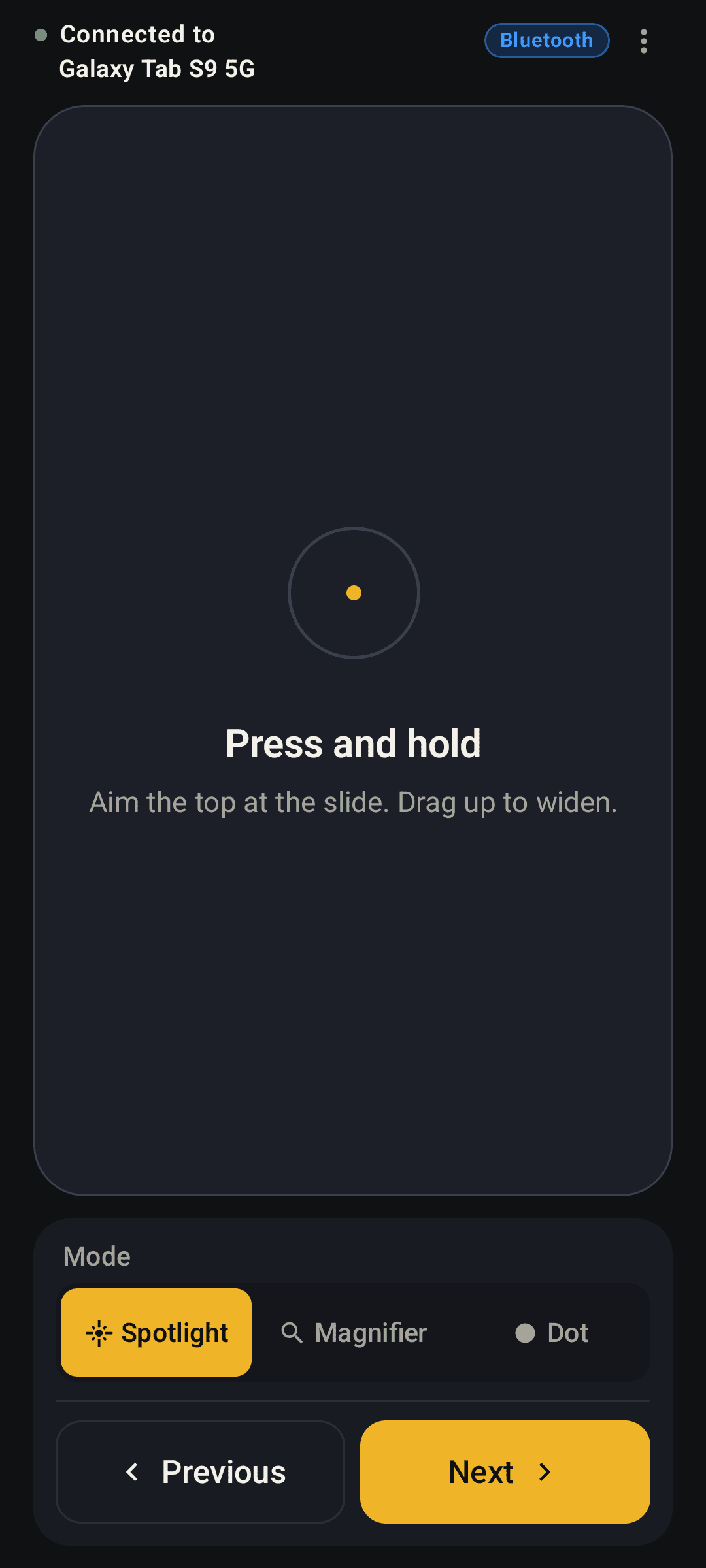
    The top of the phone aims at the slide. Drag up or down to widen the spotlight and the magnifier. Lift your finger and the circle of light on the screen goes off.

On the big screen

Three ways to hold the room on the right point.

The circle of light sits on the screen, over the deck, not inside one app. Arrow keys go to whichever app is in front.

  • Spotlight

    Free

    The screen dims and a circle stays around the point you indicate. If you want, a yellow ring and a sharp inside. Drag to change the radius while you hold.

  • Magnifier

    Pro

    Enlarges the area you aim at, so a small chart reads from the back row. On a Mac it needs Screen Recording permission.

  • Dot

    Pro

    A colored point, like a laser. Red, amber, white, green, blue, or a color of your own. Pro can leave a trail behind it.

  • Slides

    Free

    Previous and next, even when you are not pointing. Volume up is next, volume down is previous.

Works with the deck you already have.

  • Keynote
  • PowerPoint
  • Google Slides

And with other apps that change slides using the right and left arrow keys. The receiver runs on a Mac, on Windows, on Linux, or on an Android tablet. Names belong to their owners.

On the phone

A pad, two arrows, a code.

  • Connection screen with the computer address and pairing code.
    A 4-digit code, or the QR code on the computer.
  • Remote screen with spotlight selected and slide buttons.
    Press and hold the pad. Tilt the phone.
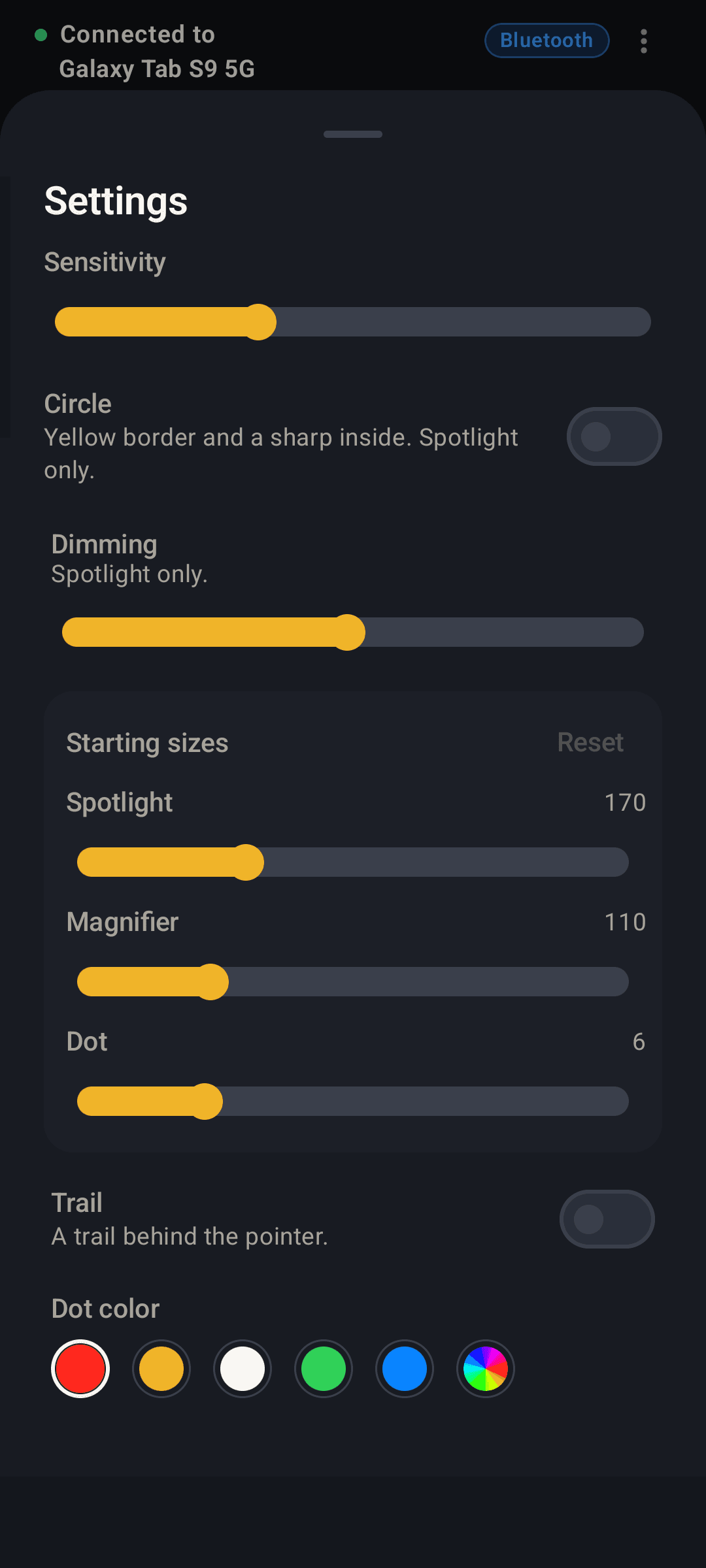
  • Settings: sensitivity, dimming, sizes, trail, and dot color.
    Sensitivity right away. Dimming, sizes, and the trail with Pro.

Only between the two devices

Your slides do not pass through us.

The phone talks only to the computer you chose, on the local network. Without the code shown on that computer, the connection does not start.

  • No account

    There is no login. We do not receive the contents of your slides, and no server of ours records how you use it.

  • 4-digit code

    The receiver shows it next to the QR code. Pointer commands stay on that session.

  • Sensors on the phone

    The gyroscope works out the movement while you hold the pad. Readings are not stored.

Privacy policy

Once, for good

Start with the spotlight. Add the rest when you need it.

No subscription. Pro stays on the Google account you buy it with.

Free

€0

To point and change slides.

  • Spotlight, hold to aim
  • Circle radius while you hold
  • Previous and next, including the volume keys
  • Connect over Wi-Fi or Bluetooth LE (Mac and Android)
  • One-tap reconnection for remembered devices
  • QR code, or a 4-digit code with auto-connect
  • Yellow ring on the spotlight, with a sharp inside
  • Automatic device discovery with Bluetooth/Wi-Fi badges

Pro

€2

One-time purchase.

  • Magnifier on the area you aim at
  • Dot, with every color and a custom one
  • Spotlight dimming
  • Starting size of the spotlight, magnifier, and dot
  • A trail behind the dot
Unlocks in the remote

The Android phone becomes the remote, and the computer shows the pointer.

Download

You need two apps, and they are not the same one.

The remote stays in the presenter’s hand. The receiver stays where the slides are shown, and it displays the code and the QR code.

What’s new

Remote

Android only. Tilt the phone, change slides, unlock Pro.

  • Android

    The presenter’s phone · Android 8 or later

    This is the app you hold. Pro is a one-time purchase in this app, on your Google account, through Google Play.

    Get it on Google Play

Receivers

Just one, on the device that shows the slides. Same code, same QR code, same port.

  • macOS

    1.0.10 · 21 October 2026

    Apple Silicon · macOS 13 or later · Wi-Fi and Bluetooth

    Menu-bar app with Wi-Fi and Bluetooth LE support. It asks for Accessibility, for the cursor and the slides, and Screen Recording only for the magnifier.

    Download the DMG416 KB

    On first launch: right-click the app, then Open.

  • Windows

    Preview

    1.0.10 · 21 October 2026

    x86_64 · Windows 10 or later

    Same code and same QR code as on a Mac. The circle of light sits over the slides. After install, open Slide Spotlight from the Start menu.

    Download the installer24 MB
  • Android

    The tablet or phone that shows the slides · Wi-Fi and Bluetooth

    Slide Spotlight Receiver, over Wi-Fi or Bluetooth LE. It puts a circle of light on the screen, over the slides. It is not the remote: it is the other app.

    Get it on Google Play
  • Linux

    Preview

    1.0.10 · 21 October 2026

    x86_64 · X11 or XWayland

    After the download: right-click, Properties, Allow executing.

    Download58 MB
    If you prefer the terminal
    chmod +x slide-spotlight-linux-x86_64-1.0.10

What’s new

  • 20 October 2026. 1.0.6. Connect over Bluetooth LE or Wi-Fi on Mac and Android, channel selector, remembered phones for one-tap reconnection, and a new compact header.
  • 15 October 2026. Spotlight: optional yellow ring, sharp inside. It stays free.
  • 14 October 2026. Pairing starts with the QR code. Address and code remain the manual path.
  • 14 October 2026. A receiver for Windows 10 or later.
  • 13 October 2026. macOS 1.0.1. Receiver for Apple Silicon: a menu-bar app, with a code and a QR code.
  • 13 October 2026. Linux 1.0. Receiver for X11. The current app also runs under XWayland.

Questions

Before you walk on stage.

If something is missing, write to hello@etnatech.it.

How does it work?

Open a receiver where the slides run: Mac, Windows, Linux, or an Android tablet. On the remote, frame the QR code. If you need to, pick the device it found, or type the address and the 4-digit code. Hold the pad and tilt the phone: the circle of light on the screen follows. Previous and next send arrow keys to the front app.

Do I install something on the phone and on the computer?

Yes, two different apps. The remote is Android only, on the presenter’s phone. The receiver is another app: macOS, Windows, Linux, or Slide Spotlight Receiver on an Android tablet. It is not a page you open in the browser.

Which programs does it work with?

Keynote, PowerPoint, Google Slides, and other apps that change slides with the arrow keys. The circle of light sits on the screen, over the window. Keep the deck fullscreen and in front.

Does it work on Windows?

Yes. The receiver runs on Windows 10 or later (in preview), on Mac Apple Silicon, on Linux under X11 or XWayland (in preview), and on Android when the slides are on a tablet. The remote stays the Android app: iPhone is not supported.

Do the slides leave the network?

No. The phone and the computer talk on the local network. Etnatech does not receive the slides, notes, or pointer commands.

Do I need an account?

Not to present. A Google account only comes in if you buy Pro: the purchase stays on that account.

What does Pro unlock?

The magnifier, the dot and its colors, spotlight dimming, starting sizes, and the trail. The yellow spotlight ring stays free. It is a one-time Google Play purchase, not a subscription.

The Mac blocks the app from opening.

The first launch may need a right-click and Open. The app is signed with the project’s Apple Development certificate. macOS then asks for Accessibility.

The phone cannot find the computer.

They need the same Wi-Fi, with the receiver open. Frame the QR code. If discovery does not start, allow nearby devices, or open IP and code and type the address and the code.

No clicker left in a drawer.

Open the receiver, frame the QR code, and the next deck already has a circle of light.